
Everything LHT Reader does, screen by screen.
Real screens and videos, on sample documents. Click any picture to enlarge it.
Open everything
Thousands of files, whole folders and web pages, in one list.
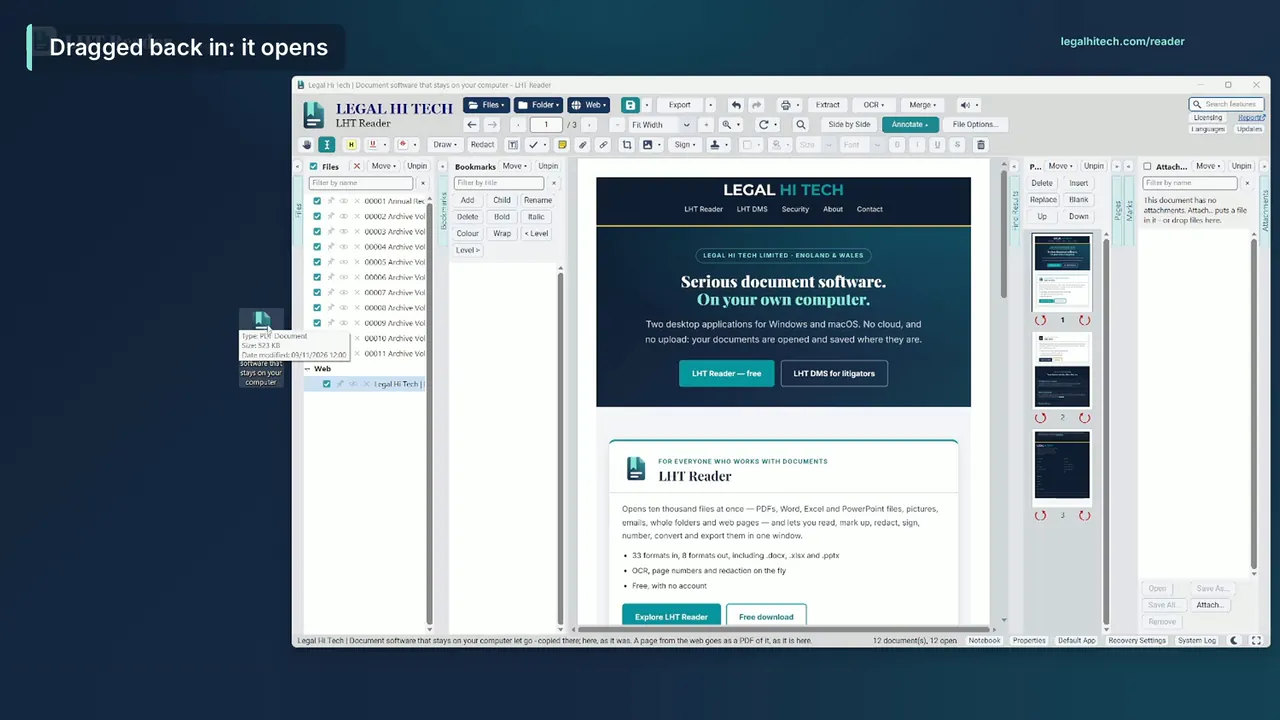
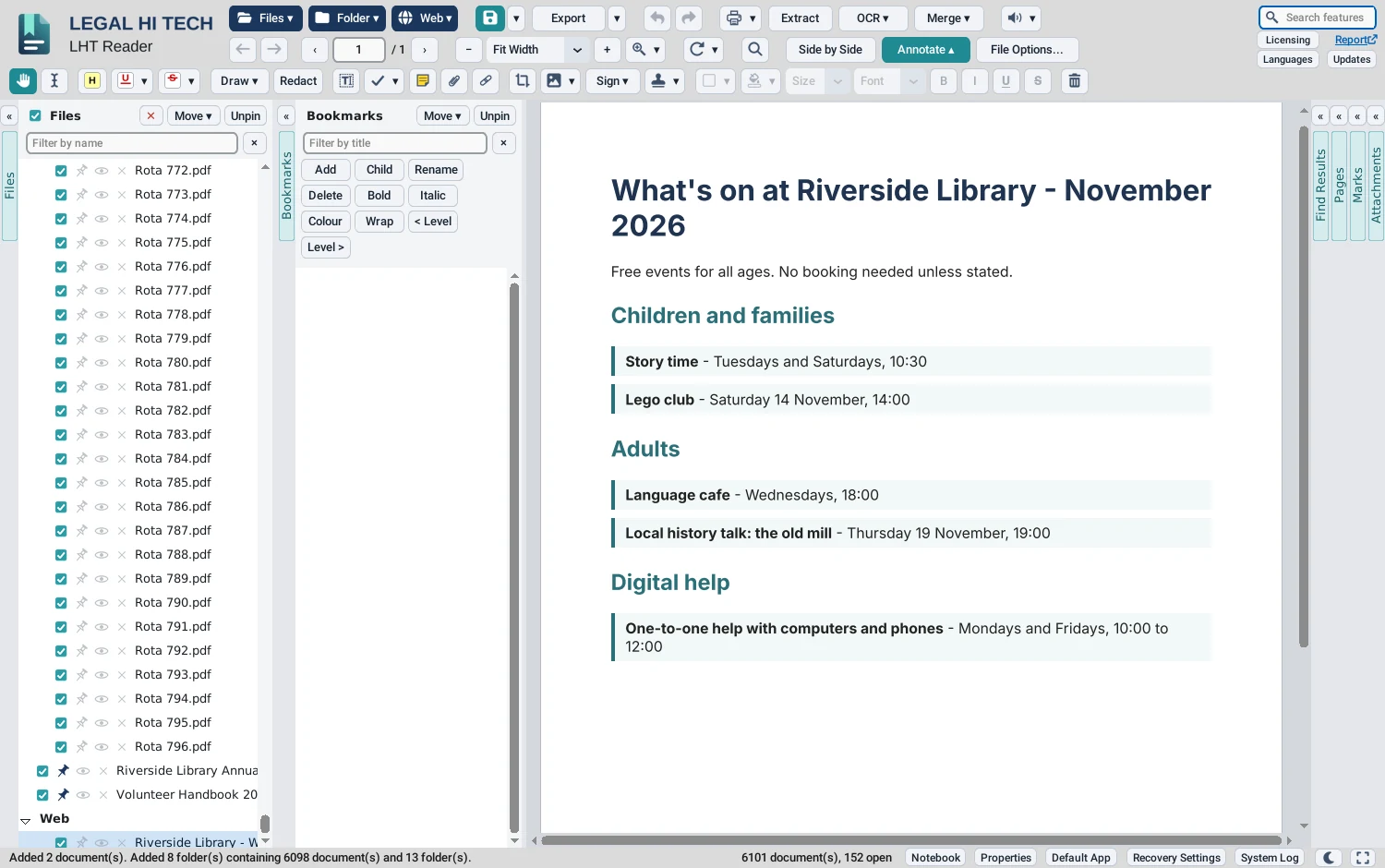
- Drag in files and folders by the thousand, or open them from the Files, Folder and Web buttons
- 33 formats, each opened as a PDF; a folder brings its subfolders with it
- Bring in a web page by its address: a PDF is fetched as it is, any other page is printed to a PDF
- An email opens with its attachments, listed in the Attachments column
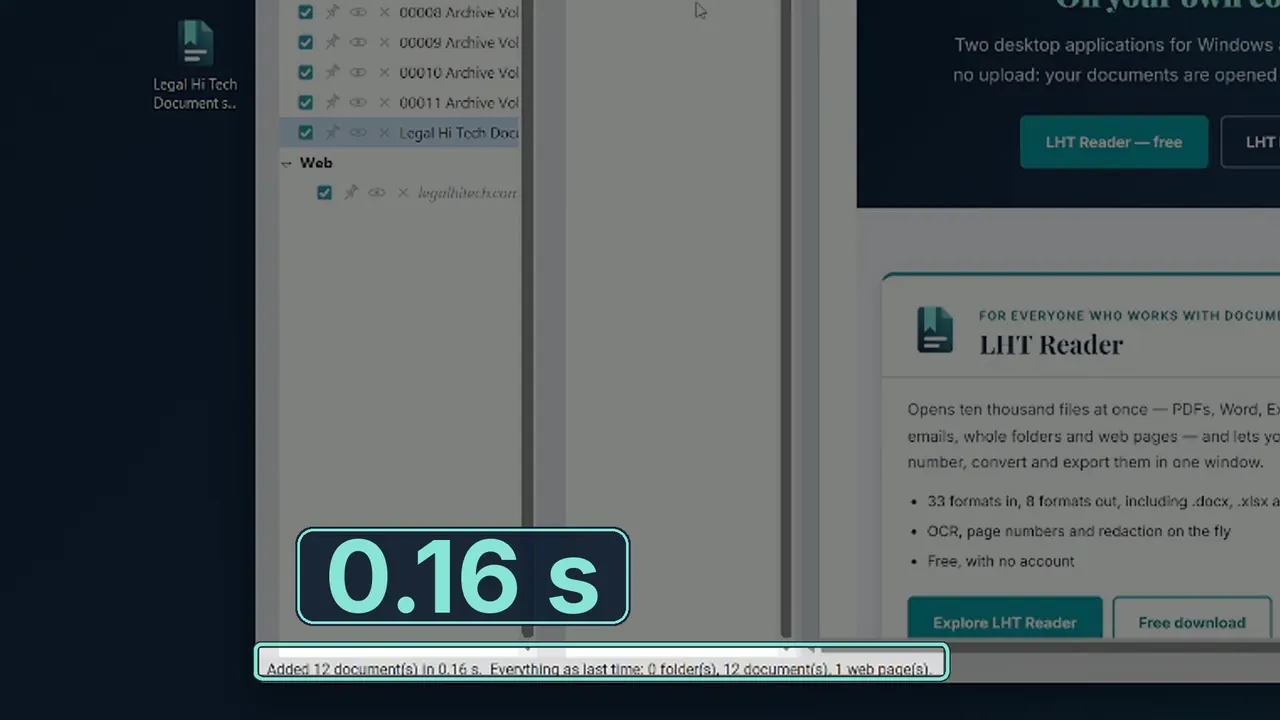
- Everything as Last Time reopens every file, folder and web page you had open
- Unsaved changes kept against a crash, and offered back at the next start
- Make LHT Reader the default app for PDF files, from Default App in the status bar
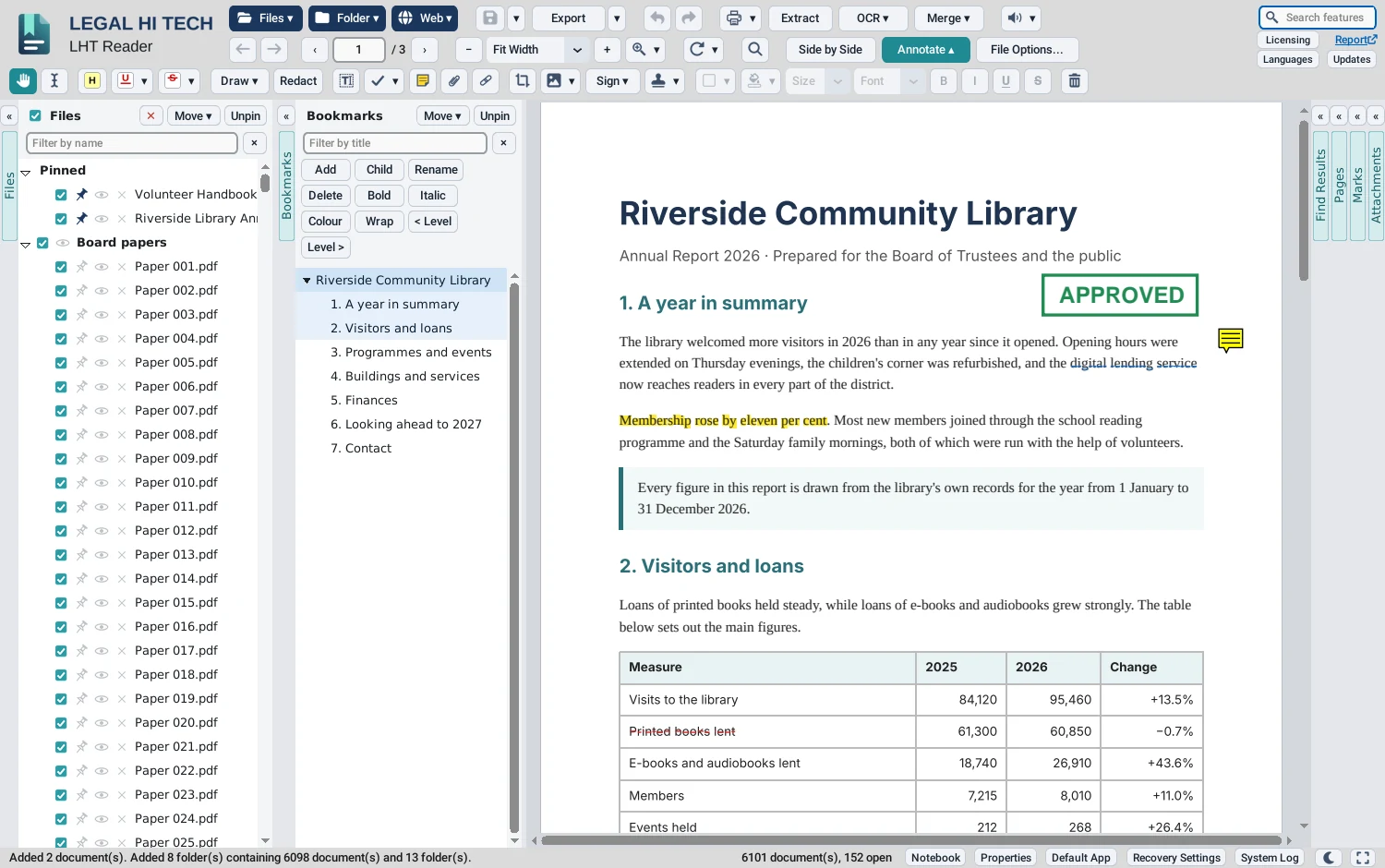
The Files column
Every document you bring in, listed down the left of the window: click one, and it is on screen.
- Pin documents to the top, filter by name, sort by name or date, or drag a row up or down
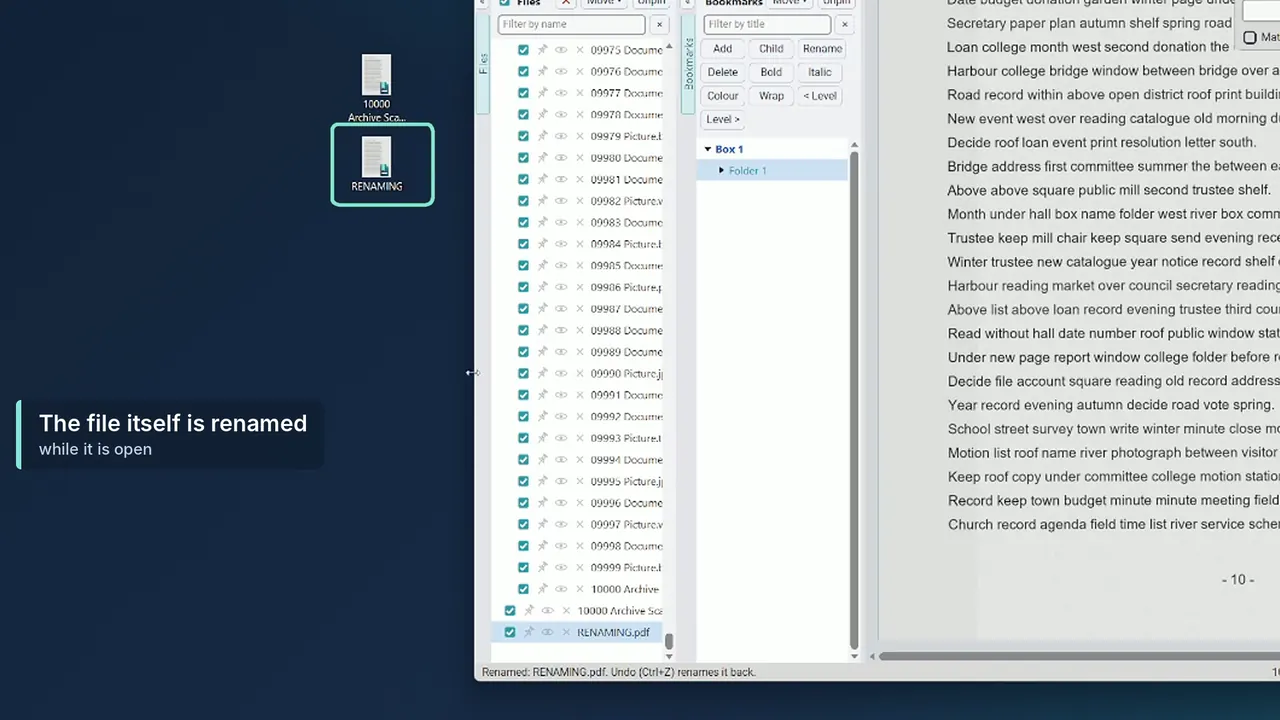
- Rename a document’s file from the list, even while it is open: LHT Reader lets go of the file, renames it and opens it again, and Undo renames it back
- Make a name bold, italic or coloured to pick it out, in the list alone: the file’s own name is not touched, and Everything as Last Time keeps the style
- Tick a set of documents to merge, export, print, OCR or apply File Options to them together
- Open the folder a file is in, see its details, or read it again from the disk
- Fold the column away to a tab at the edge of the window, or move it to the right of the document; every column moves the same way
Read and find
Move through long documents and many documents at speed.
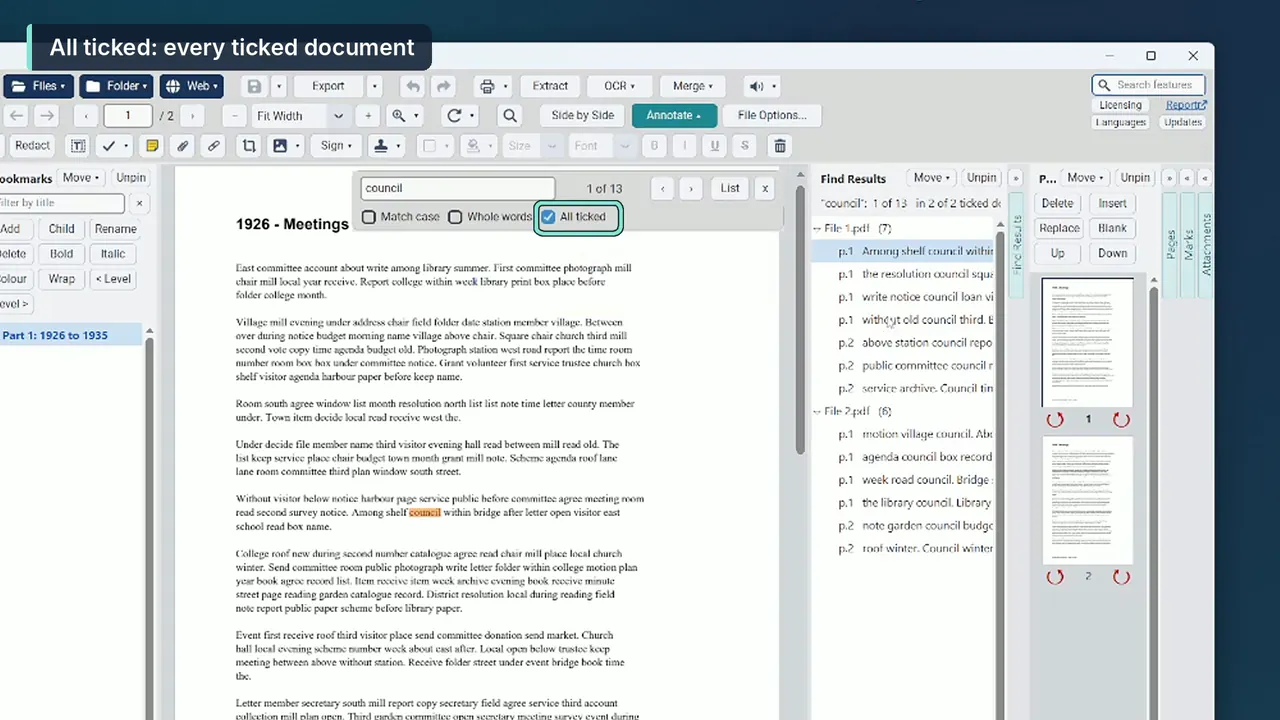
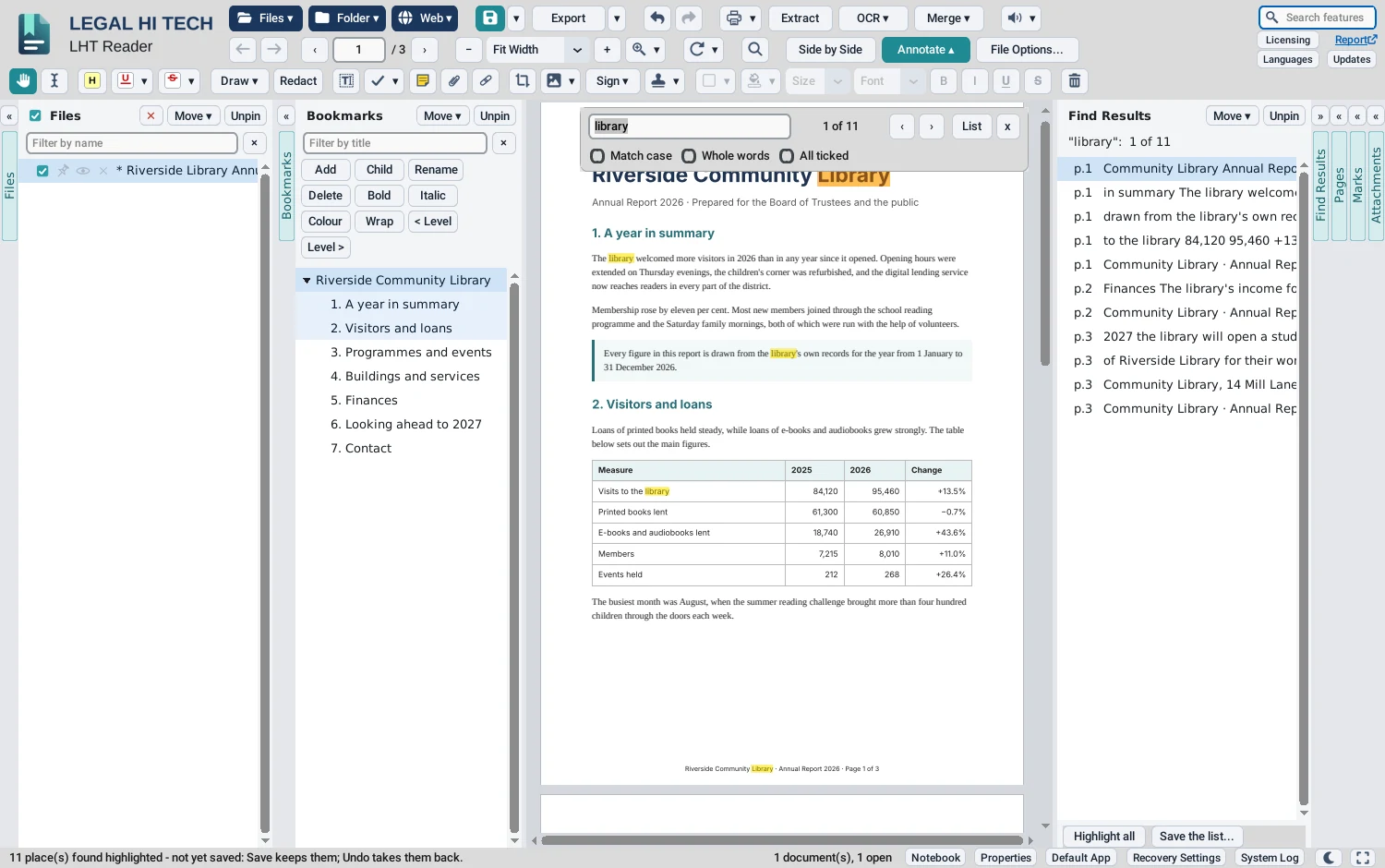
- Find in one document or every ticked one, with each place found listed in the Find Results column
- Highlight everything Find found in one step, or save the list as a CSV file for Excel
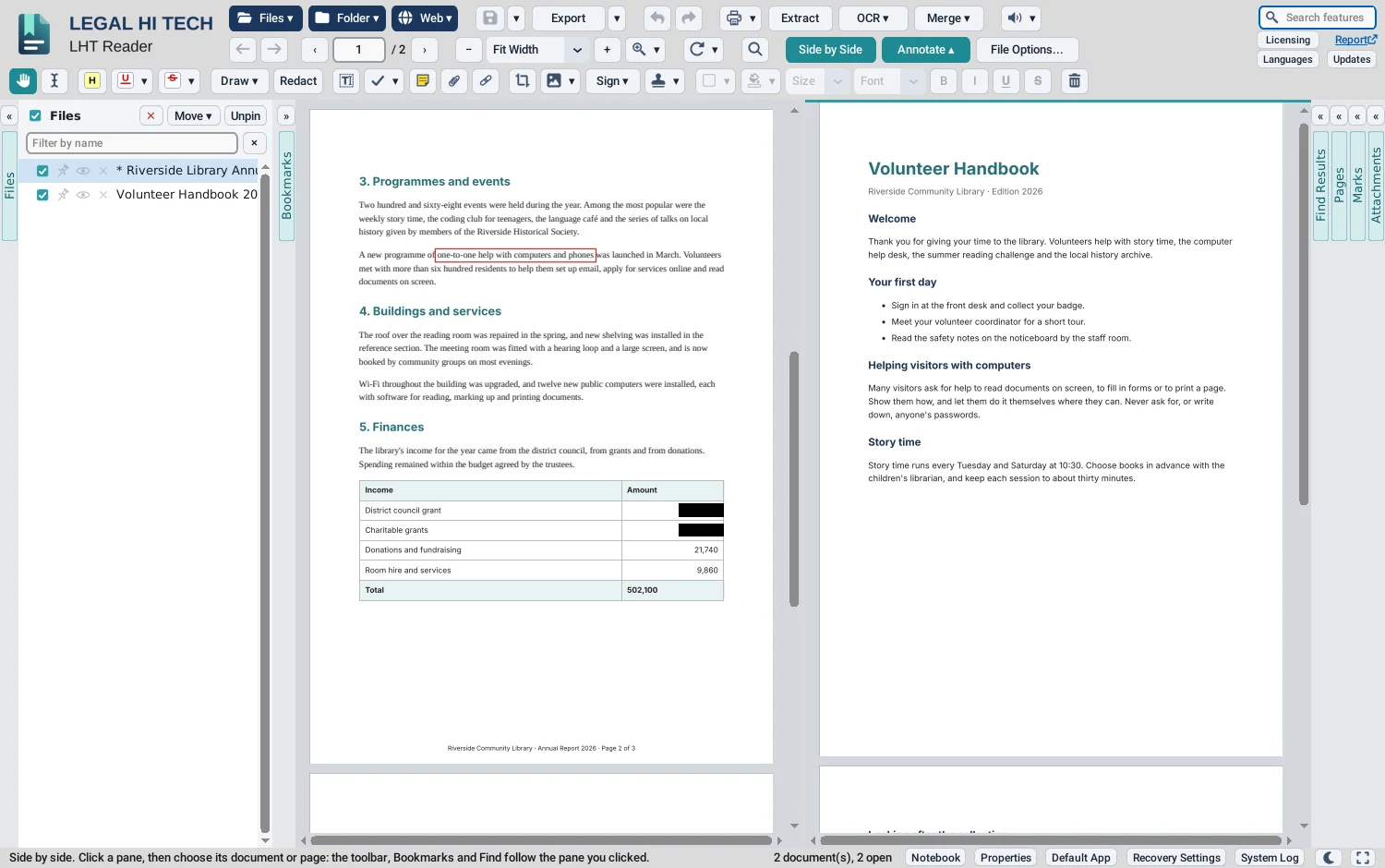
- Side by Side: two documents, or two places in one, each in its own pane
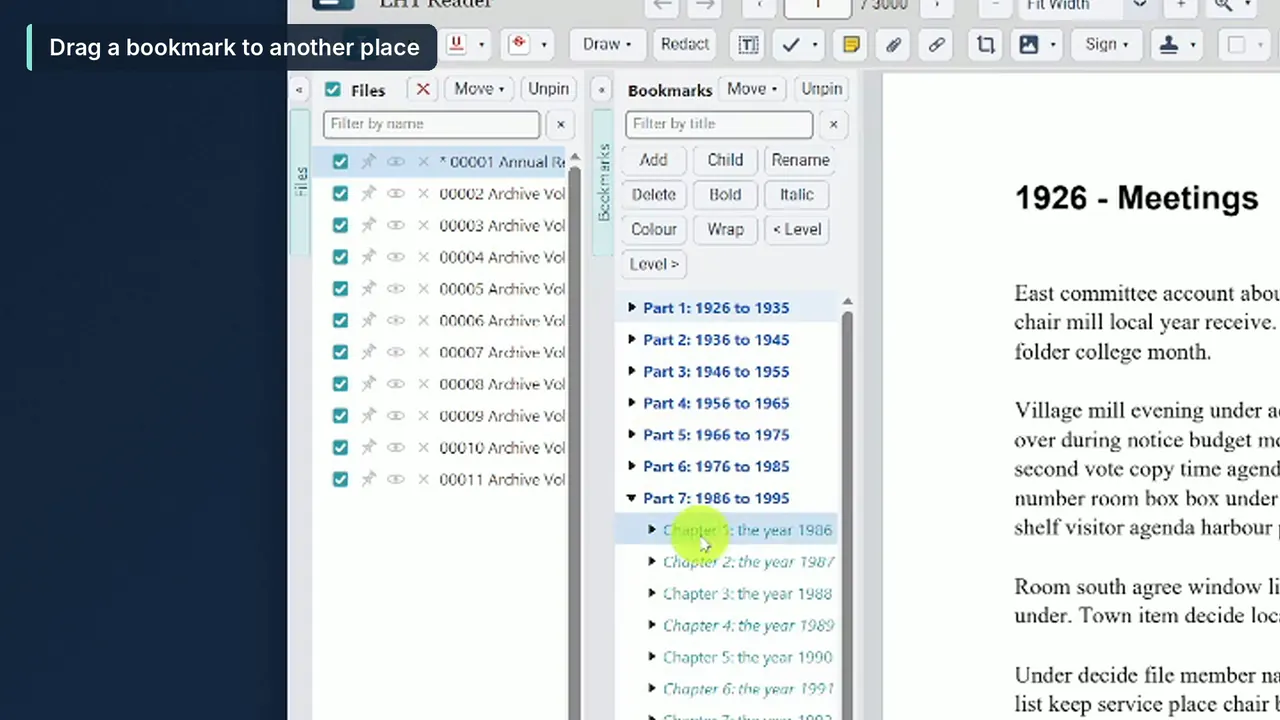
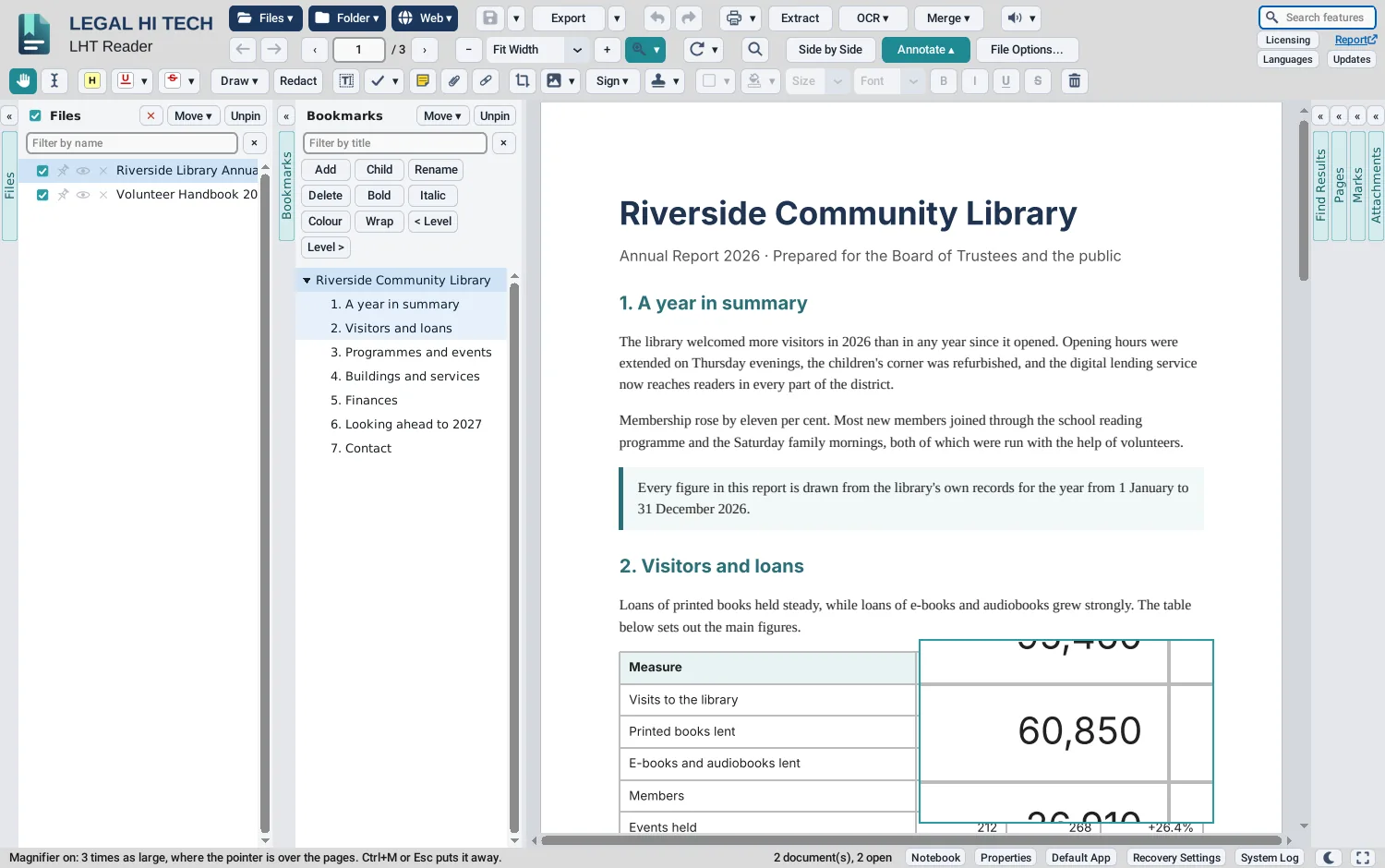
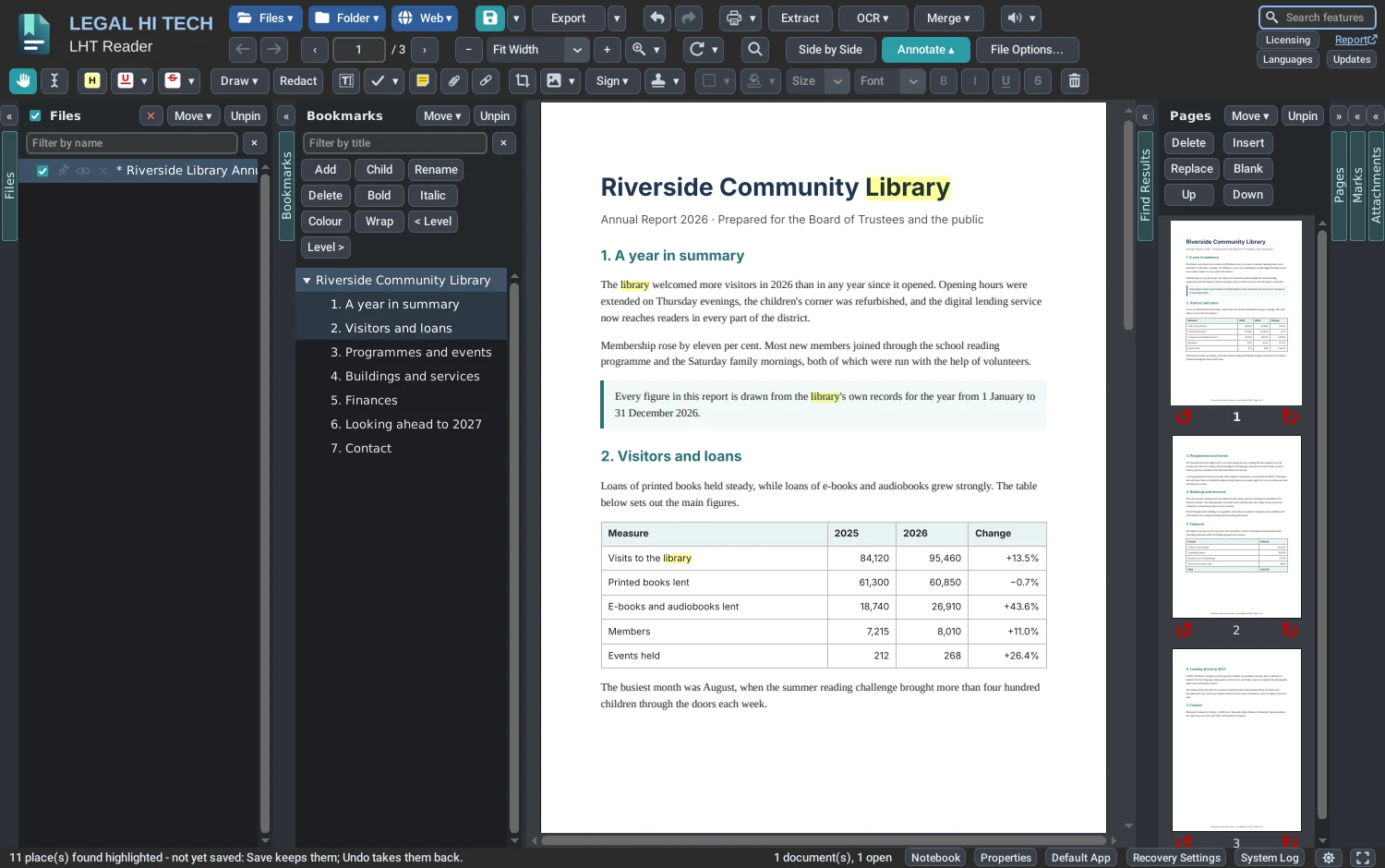
- Bookmarks to add, rename, nest, colour, make bold or italic, and print or save a section from
- Back and Forward to wherever you jumped from, to the very line
- A magnifier, two to four times as large, wherever the pointer is
- Read aloud with the computer’s own voices: a page, the words selected, or on to the end; auto-scroll at the speed you set
- A dark look, and full screen
OCR
Scanned pages made searchable, in the background.
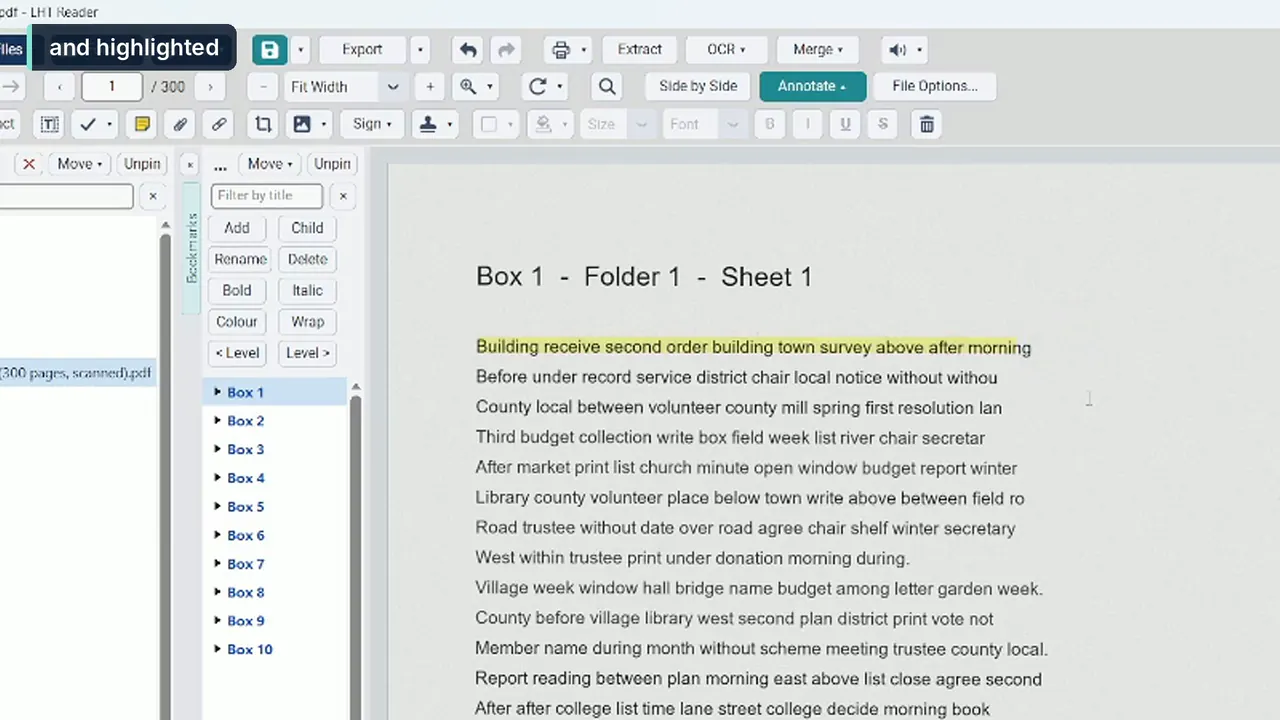
- OCR File reads the document on screen; OCR Ticked reads every ticked document, one page after another, while you go on working
- Only pages without words are read; Stop OCR keeps what has been read so far
- The scanned words can then be found, selected, copied and highlighted
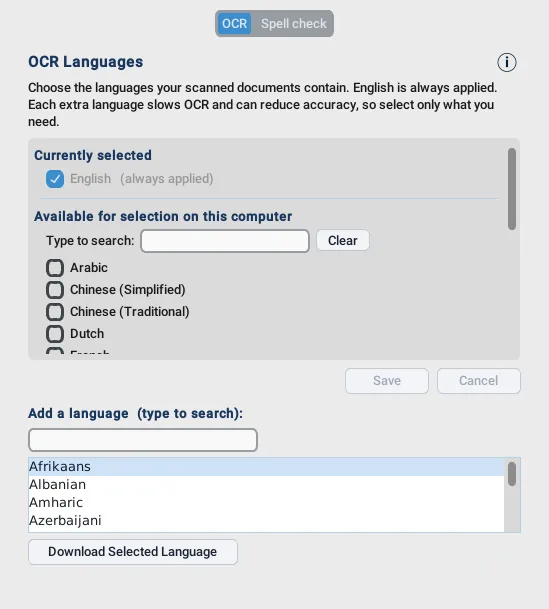
- Set OCR Languages: English always, and any other language you choose, downloaded when you add it
- OCR the pages you choose from the Pages column, or many documents at once with File Options
- The pages are read on your own computer: nothing is sent anywhere to be read
Compare
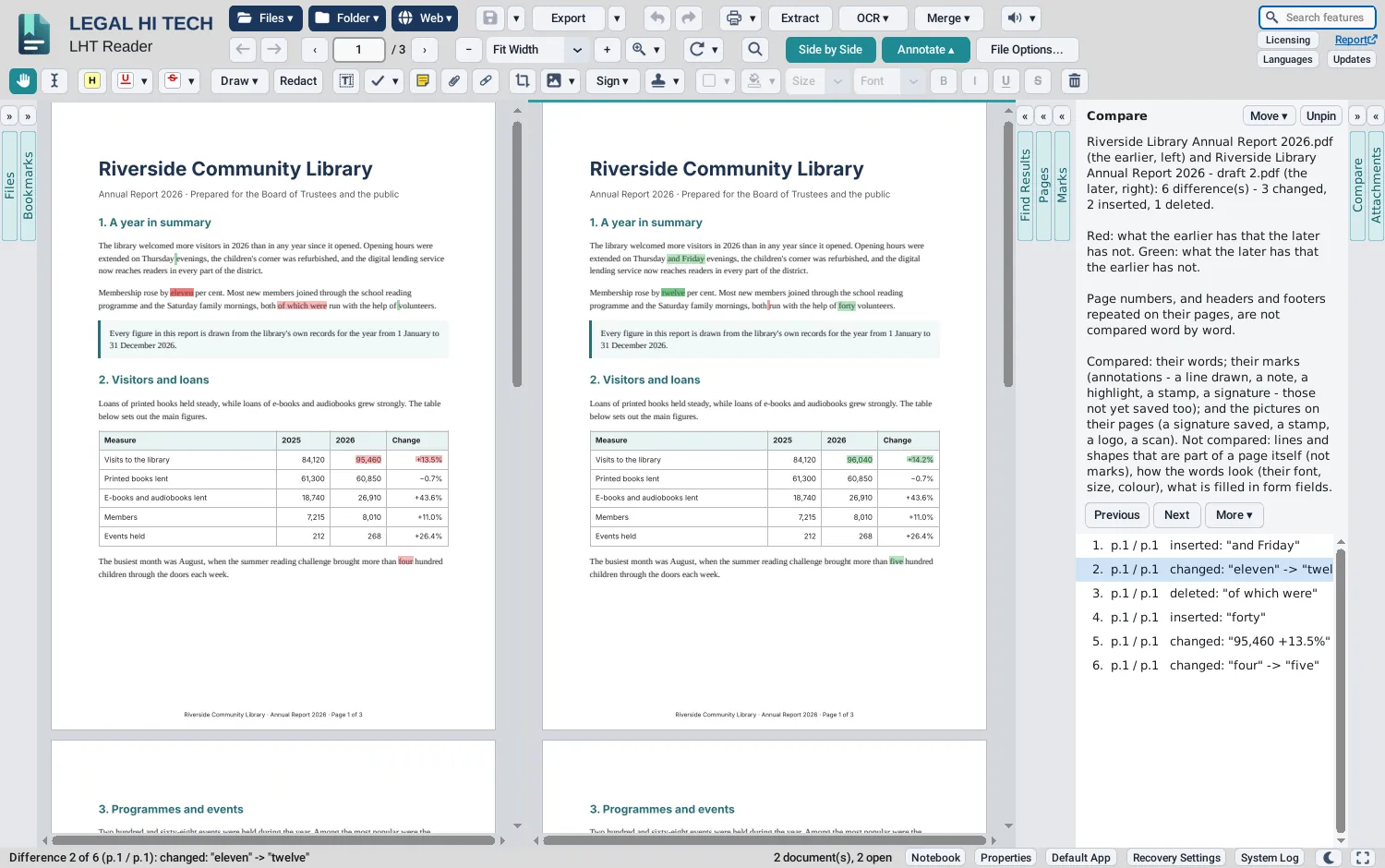
Two versions of a document, every change marked.
- Select two documents in the Files column, right-click, and Compare the two selected; or compare one with the document on screen
- The earlier version on the left, the later on the right: what the earlier has that the later has not, marked red; what the later has, marked green
- Every difference listed in the Compare column, with Previous and Next to go through them
- Words compared as words: a line broken elsewhere, or a page ending sooner, changes nothing; page numbers, and headers and footers repeated on their pages, are left out
- Marks and pictures compared too: a note, a highlight, a stamp, a signature, a logo or a scan
- Mark the differences in the documents themselves, as highlights
Drag and drop
Pages, sections and files, wherever you want them.
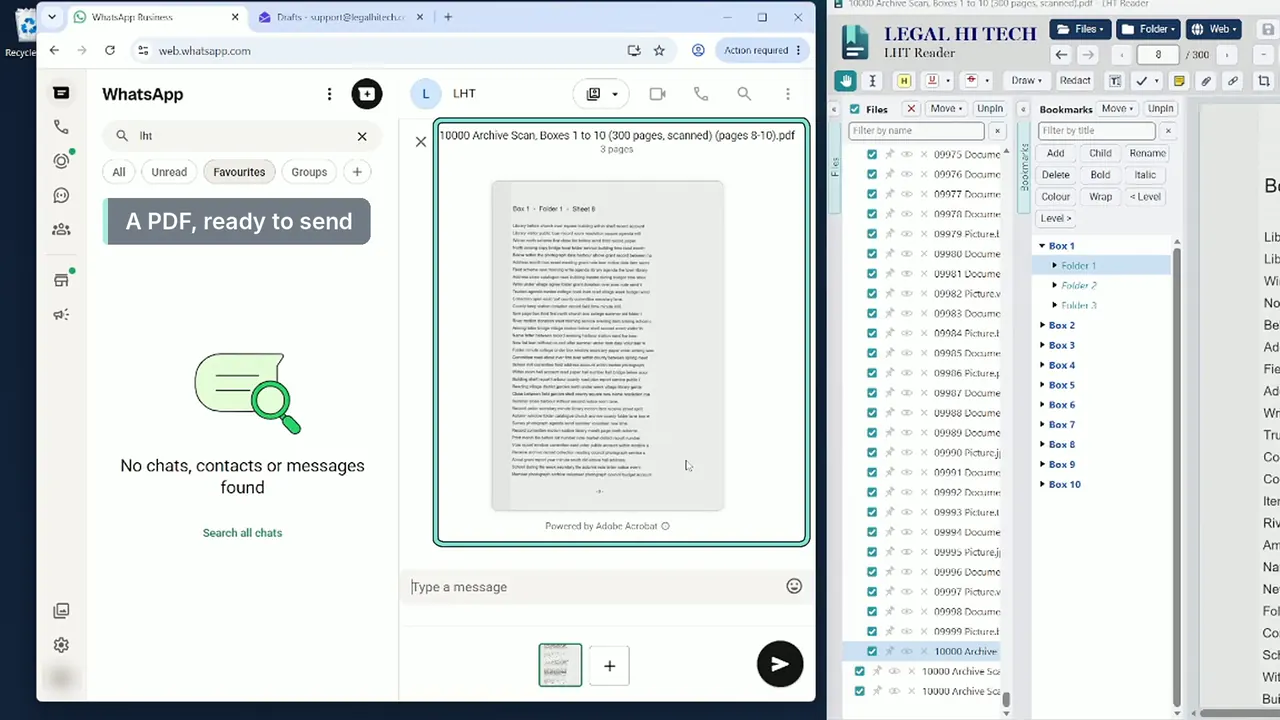
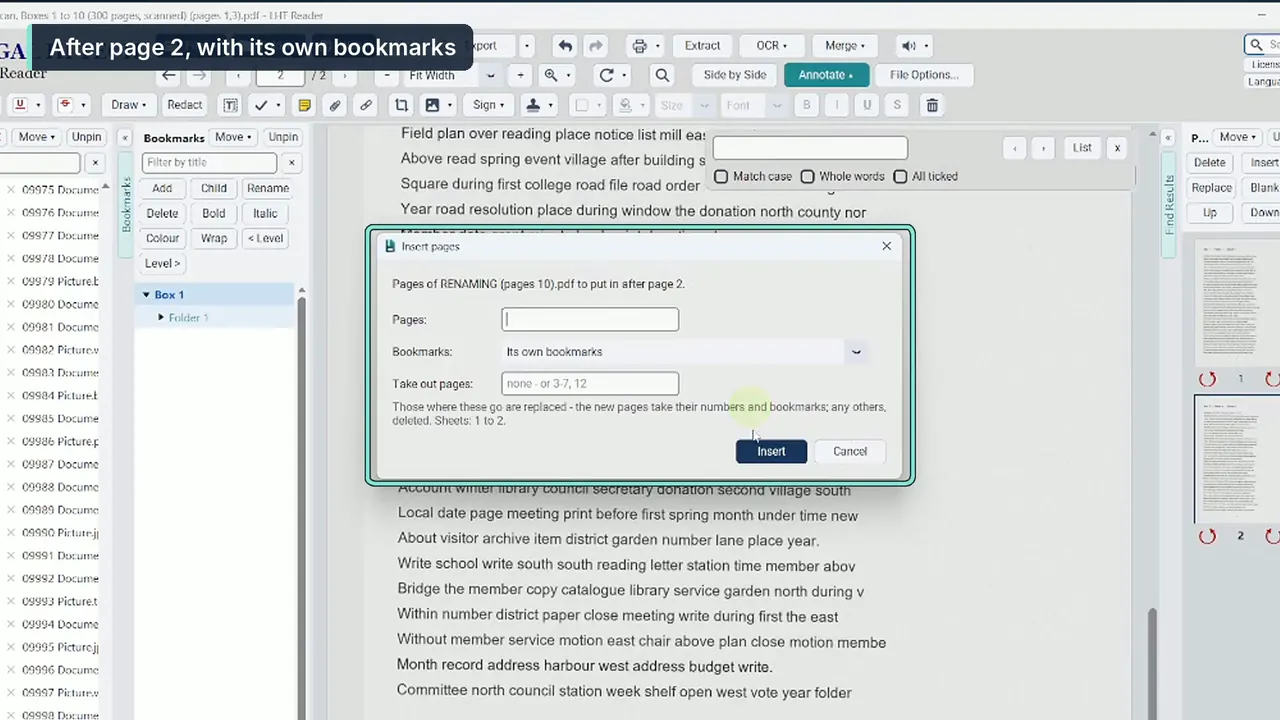
- Pages selected in the Pages column, dragged onto another PDF in the Files column, go into it where you choose, as Insert puts pages in, with their bookmarks and page numbers
- Dragged onto an attachment, they go into the attachment; dragged onto an empty part of the Files or Attachments column, they become a PDF of their own
- A bookmark dragged out of the Bookmarks column carries its section’s pages, to go wherever pages go
- A file dropped on the Pages column goes in at that point; files dropped on the Attachments column are attached
- A document dragged from the Files column onto a page is pinned there as a paper clip; onto the Attachments column, it is attached
- On Windows, pages, a bookmarked section, documents and attachments can be dragged out of the window: onto the desktop or into a folder, into an email you are writing, or into a WhatsApp chat; pages and sections go as a PDF of their own
- On Windows, pages dragged onto a Word document go into it, put there by Microsoft Word itself, at its start or its end
Mark up
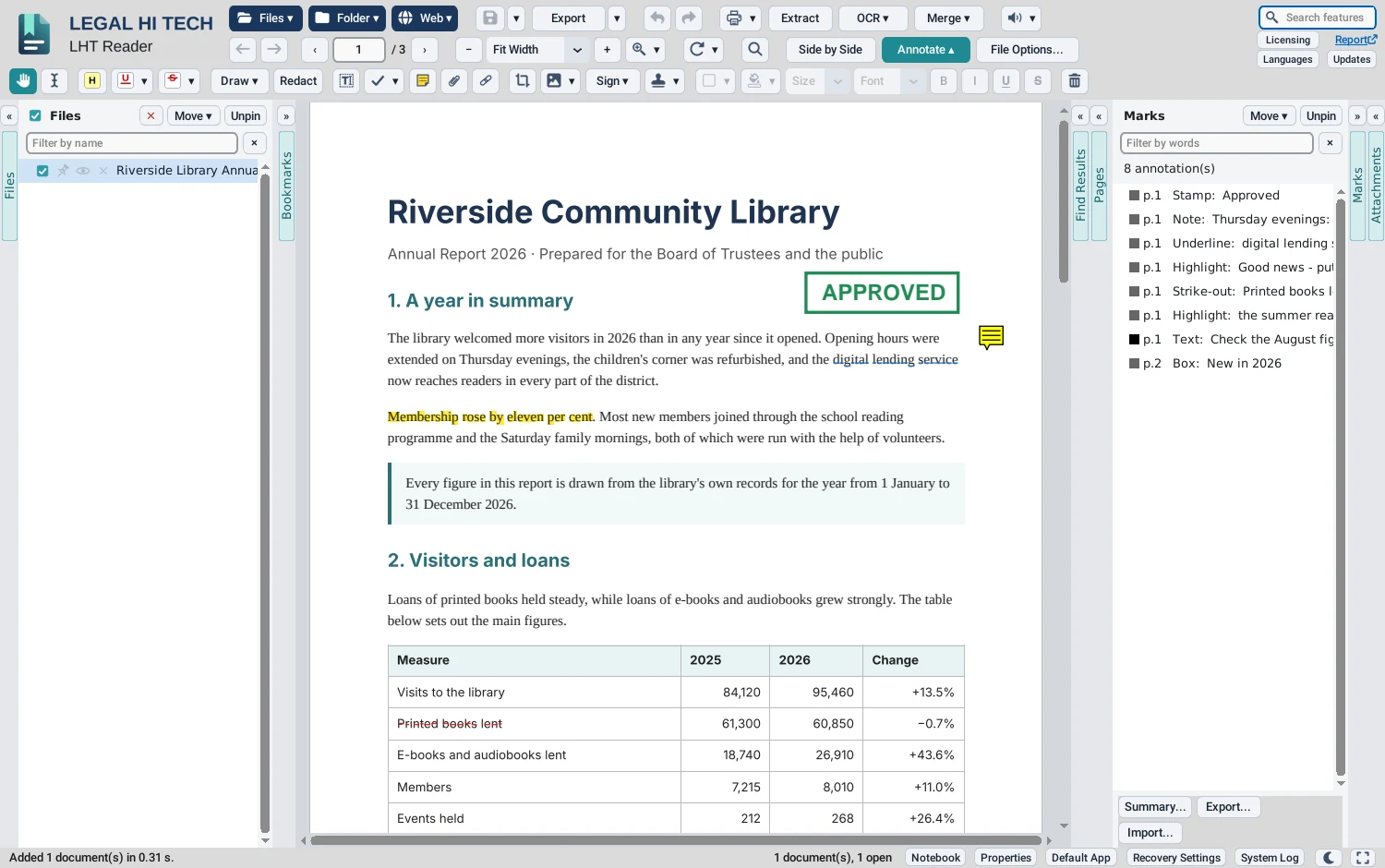
Every kind of mark, each one listed and searchable.
- Highlight, underline, squiggly underline and strike-out; proof marks to replace or insert words
- Notes and typed text, with bold, italic, underline, alignment, bullets and line spacing, spell-checked by the computer’s own checker
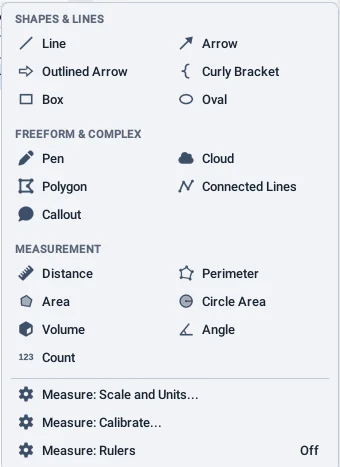
- Lines, arrows, boxes, ovals, clouds, polygons, callouts and a pen
- Measurements: distance, perimeter, area, volume, angle and count, to a scale you set or calibrate
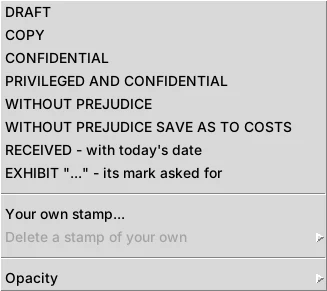
- Stamps, ready-made or your own, placed on every page, the odd or the even pages, or those you choose; pictures, video and audio placed on a page; links
- The Marks column: every mark listed, with a summary as a PDF or a CSV file, and export and import as FDF or XFDF
- Every mark hidden for a moment, for a clean page on screen, and shown again in one click
Redact
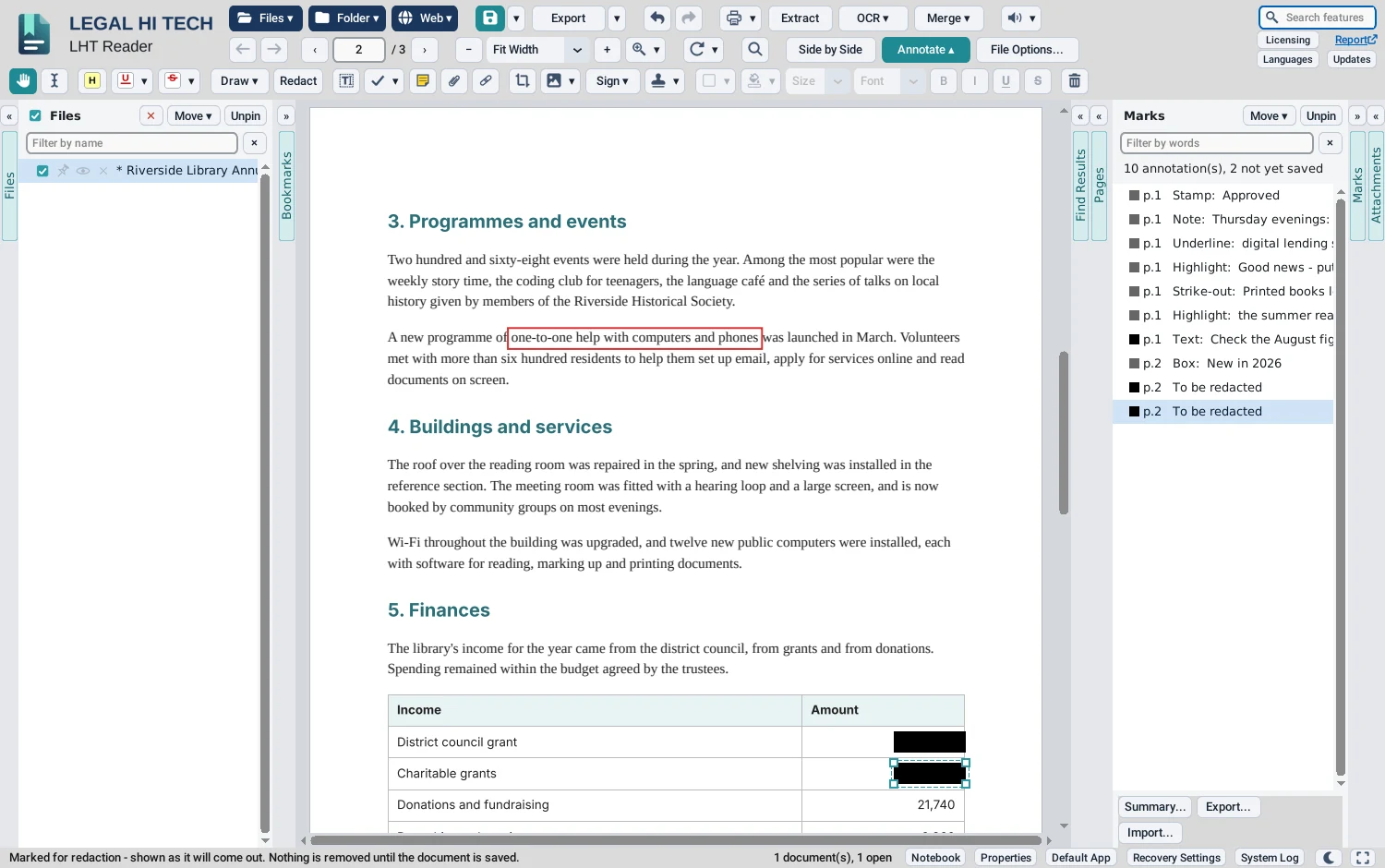
Redaction that removes, rather than covers.
- Mark words, or drag over any area, for redaction; each mark shows as it will come out
- When the document is saved, each redacted page is replaced with a picture of itself
- LHT Reader then checks that no text is left on that page, and makes the words still visible searchable again by OCR
- Nothing is removed until you save, and Undo takes a mark back
Fill in and sign
Forms, your own signature, or a digital ID.
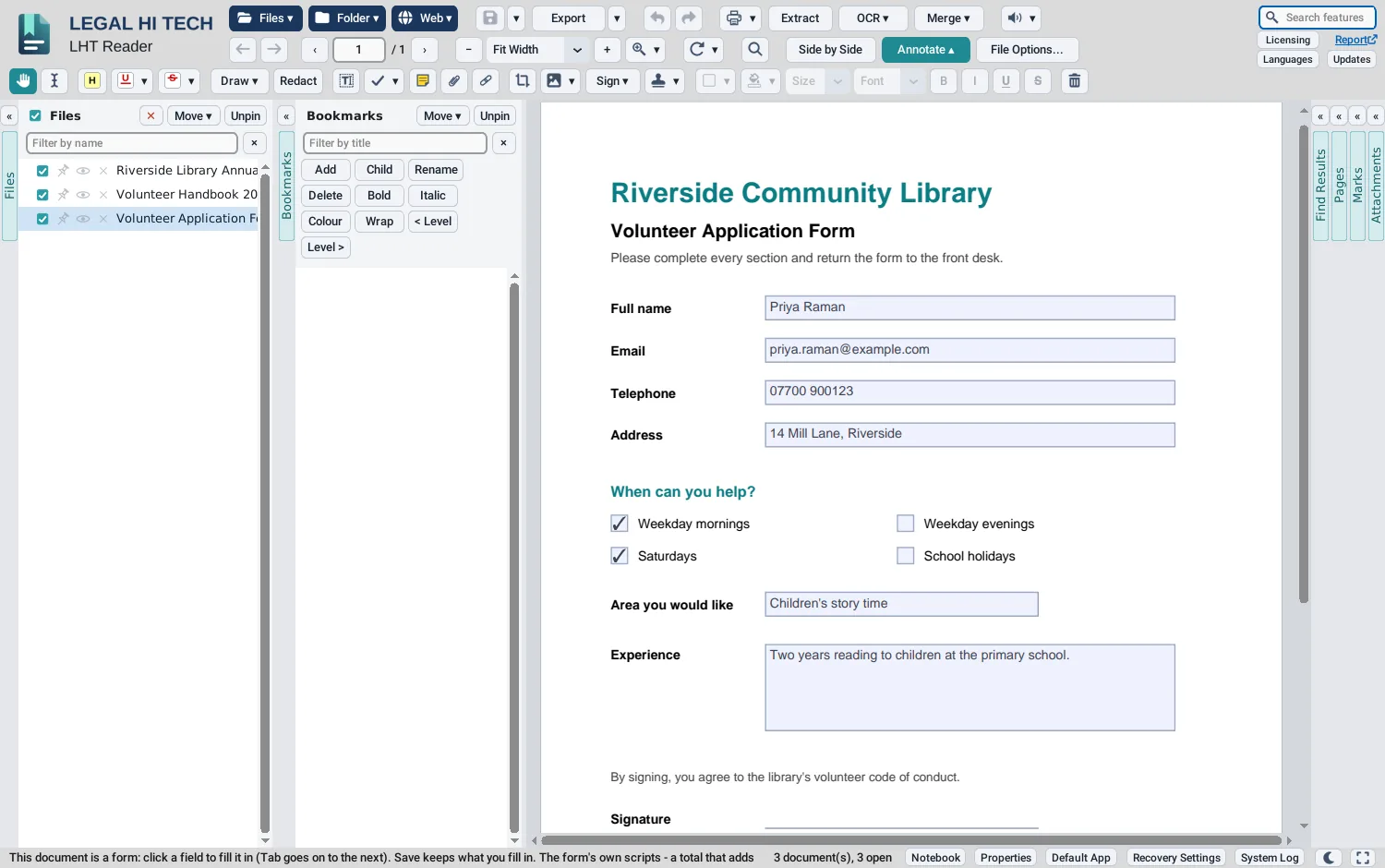
- Fill in PDF forms, with the fields highlighted; for a form without fields, typed text and tick, cross and dot marks
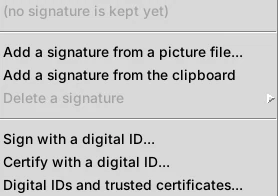
- Keep your signature from a picture or the clipboard: its paper made clear, kept sealed on your computer, and under a password of your own if you wish
- Sign or certify with a digital ID: a .pfx or .p12 file of your own, or one made in LHT Reader
- Every signature in a document checked, offline: no time-stamp server, no look-up of revocation
- A signature is added after the file as it is, so what was signed before stays signed
Pages and page numbers
Rebuild a document without leaving it.
- The Pages column: delete, insert from another file, replace, add blank pages, move, rotate and extract
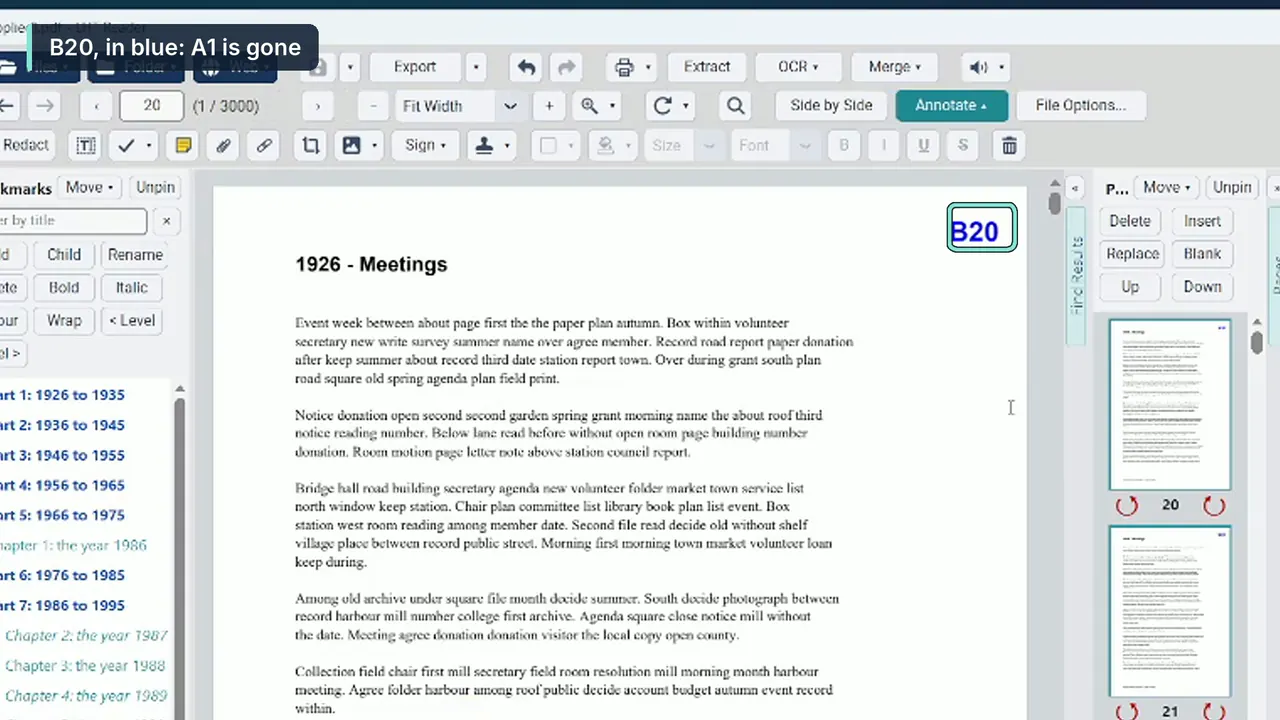
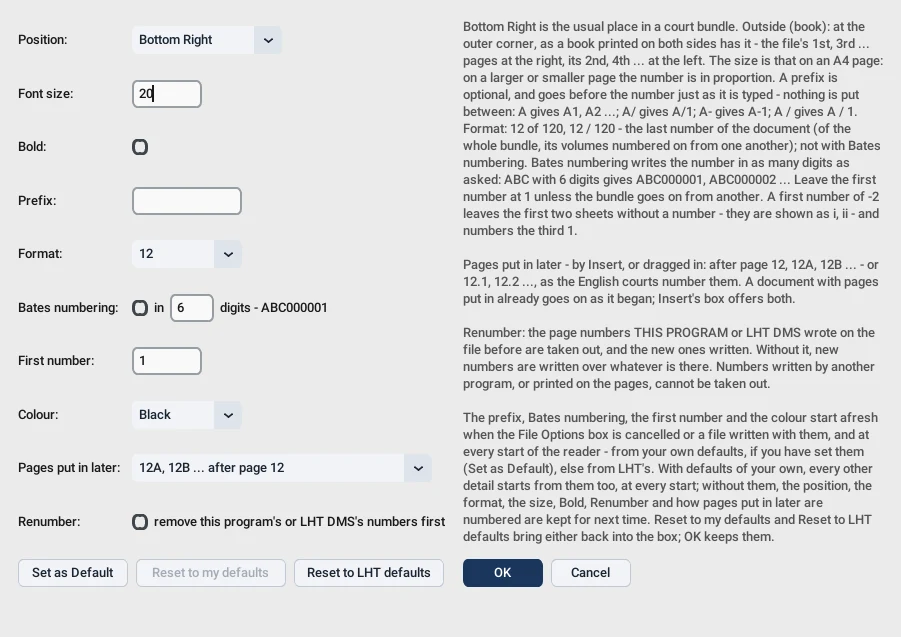
- Page numbers where you want them, with a prefix, a format such as 12 of 120, a size and a colour
- Renumber: the page numbers LHT Reader or LHT DMS wrote before are taken out, and the new ones written
- Number the documents in the list where they are: Apply to Ticked, Over Themselves, writes each over its own file, a copy of it kept first in an LHT Backup folder beside it
- Bates numbering, and numbers for pages put in later, such as 12A or 12.1
- Page labels and cropping
- OCR the pages you choose
Convert and export
Write out the format someone else needs.
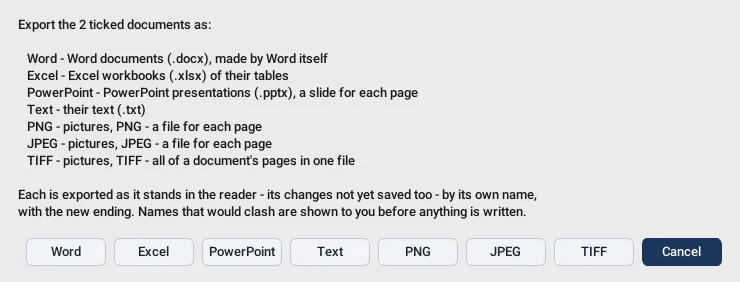
- Export to Word (on Windows, made by Microsoft Word itself), Excel, PowerPoint, text, PNG, JPEG or TIFF
- Excel: the tables read from the pages, cells merged as they are, numbers as numbers
- PowerPoint: a slide for each page, with its videos and sounds kept
- Export one document, or every ticked document at once
- Extract pages; print with or without marks, or with stamps only
File Options
Fix a document, or a thousand, in one pass.
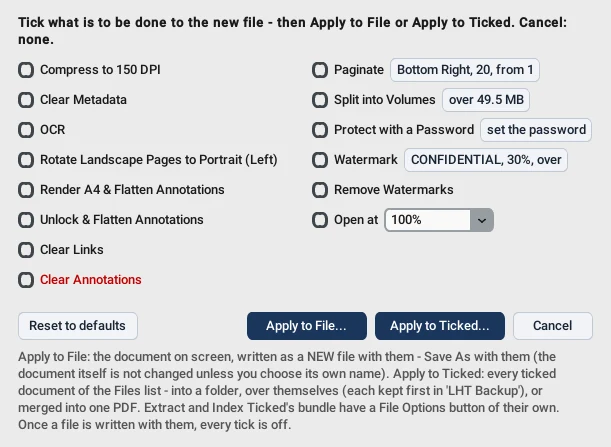
- Compress, clear metadata, OCR, turn landscape pages to portrait, render to A4 or Letter and flatten annotations
- Unlock, flatten or clear annotations, clear links
- Add or renumber page numbers, split into volumes under a size or a number of pages, protect with a password (AES-256), add or remove a watermark
- Open at: the zoom at which the new file opens, in any PDF reader
- Apply to the document on screen, as a new file; or to every ticked document at once, into a folder or over the files themselves
Merge and index
Many documents into one, with an index to match.
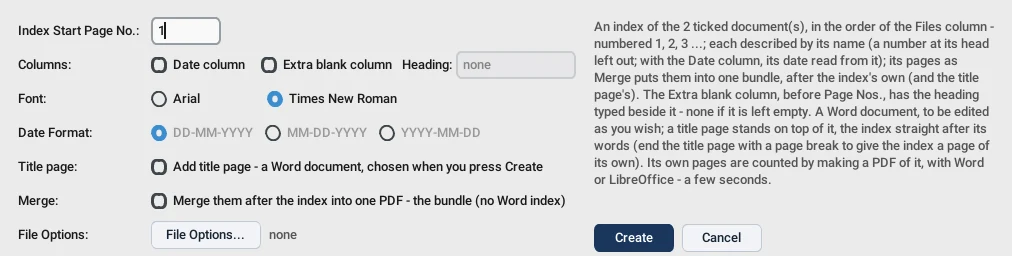
- Merge the ticked or pinned documents into one PDF, in the order of the Files column, each document a bookmark
- Index: a Word index of the documents, with page numbers, dates and an extra column if you want one
- Merge the documents after the index, into one numbered bundle
Attachments
Files inside a PDF, and files pinned to its pages.
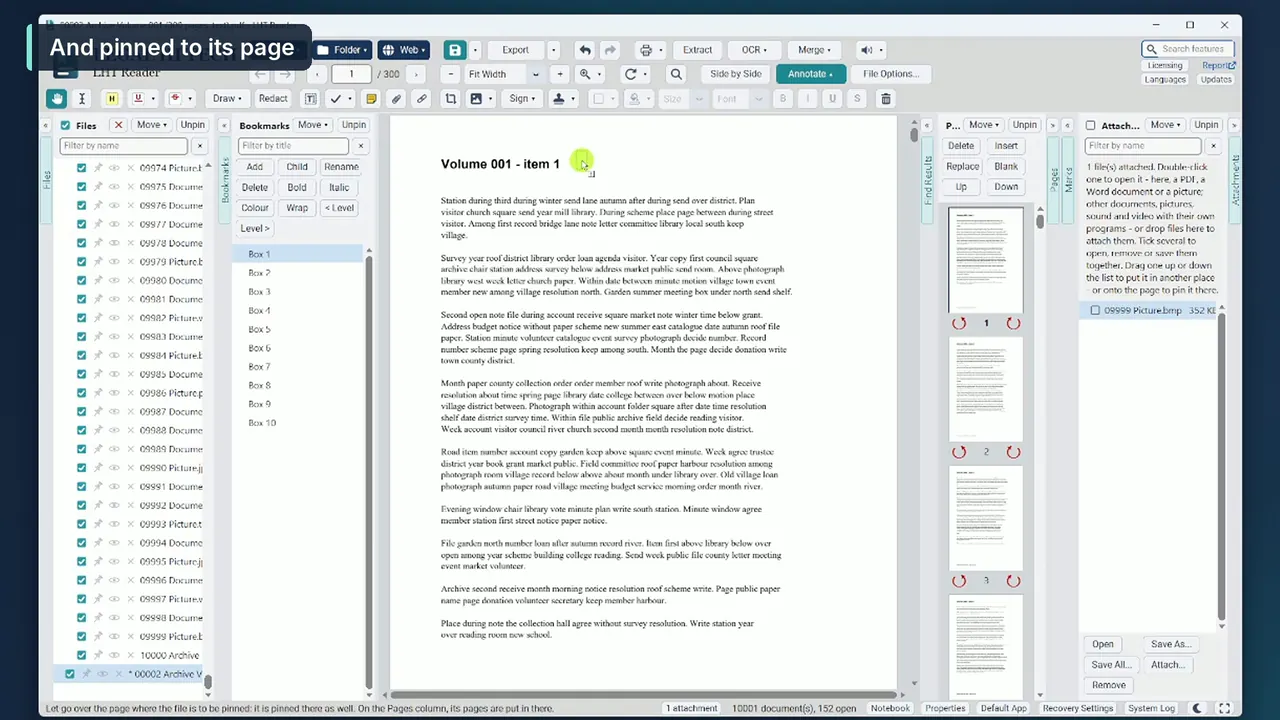
- The Attachments column lists every file attached to a document: open, save, rename, sort or remove them, or save them all at once
- Attach a file with Attach, or drop files on the column
- Pin a file to a spot on a page, as a paper clip; drag a paper clip to move it
- A file opened from a PDF is first marked as having come from elsewhere, as a browser marks a download; a program or script attached to a PDF is never started
Meetings and notes
Share your screen without sharing everything.
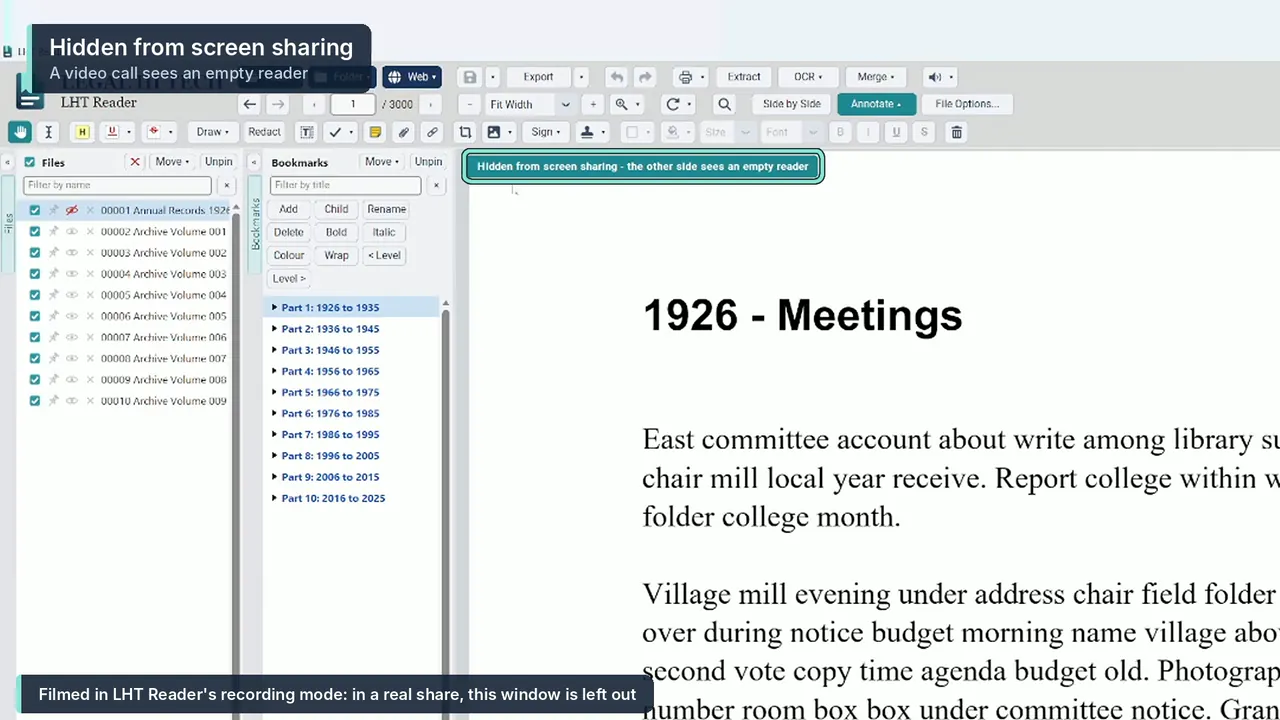
- On Windows, hide a single document from screen sharing, screen capture and recording, while the rest of LHT Reader stays shared
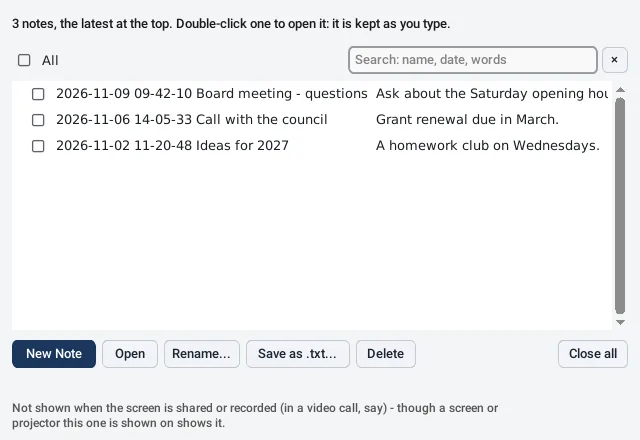
- The Notebook: notes of your own beside your documents, searchable by name, date and words
- On Windows, the Notebook is never shown in screen sharing
Find any feature
Type what you want to do.
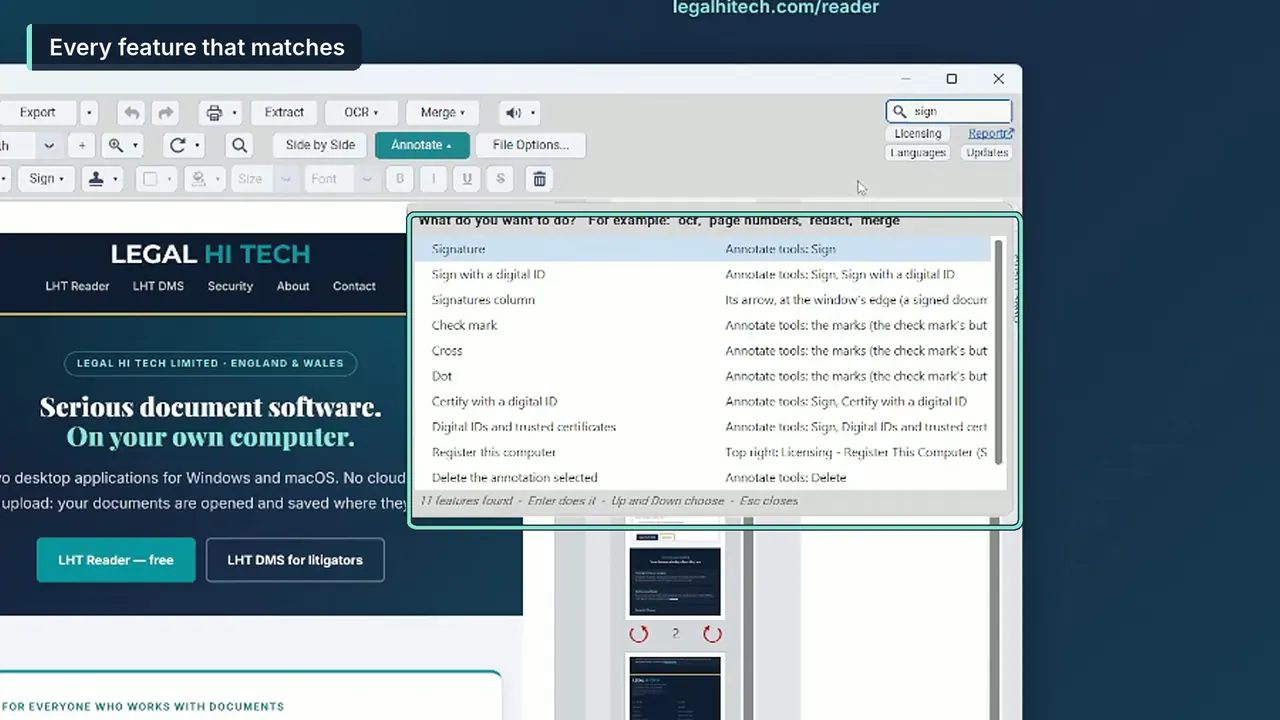
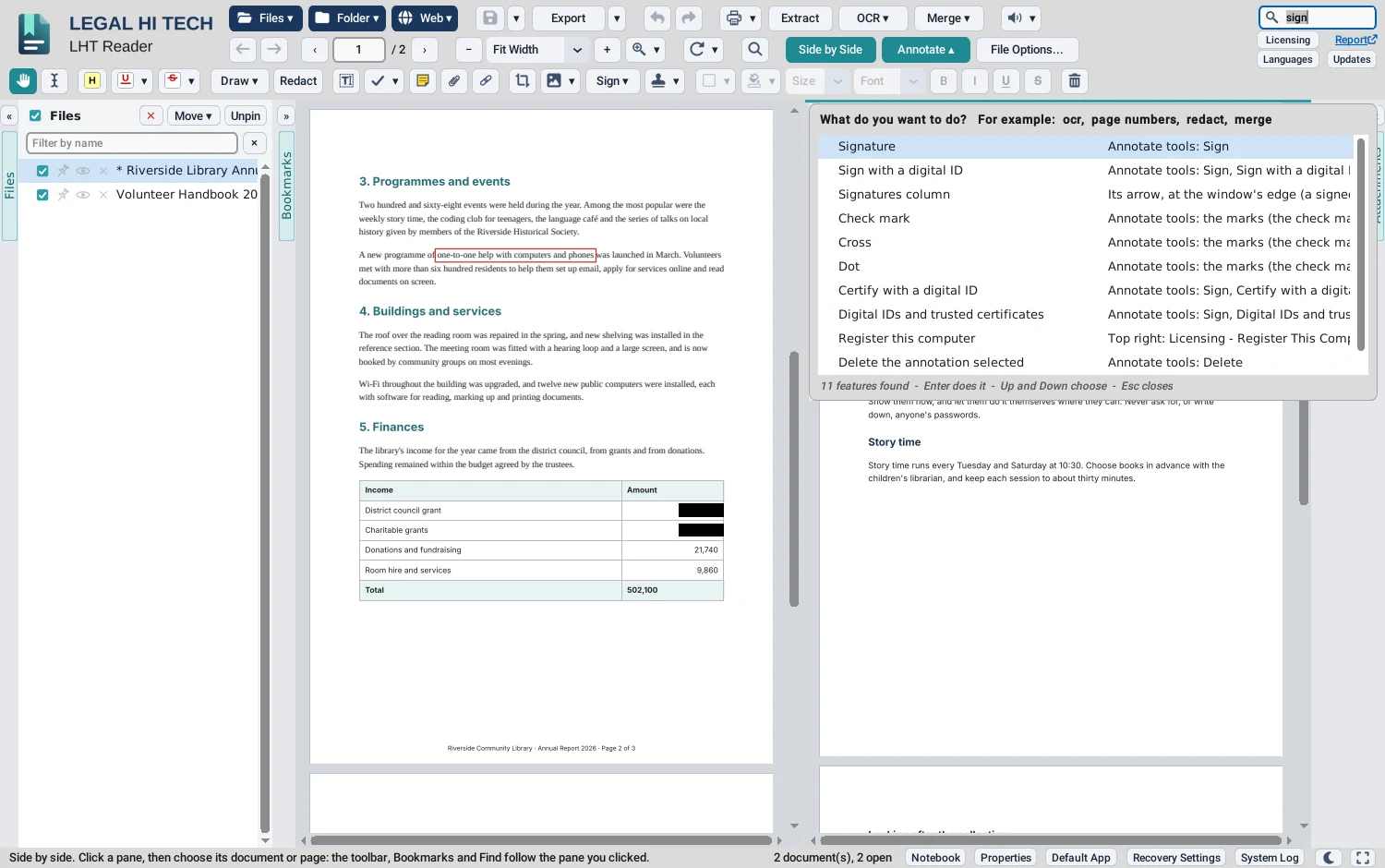
- Search features: type a word such as redact, page numbers or merge, and LHT Reader shows the feature and where it lives
- Enter does it; the arrow keys choose
Everything on this page works on Windows and on a Mac, except where it says “on Windows”. What is different on a Mac